
Whitelisting Trusted IP Ranges
UPDATED: 6 March 2009
It turns out that the code I originally wrote for this post became obsolete. I don't know exactly when this happened but I have come up with a fix. My apologies to anyone that may have tried the original code only to see that it didn't work. Please try this new code, it should work just fine.
I suppose I should shed some light on what happened. For some reason salesforce.com added a _CONFIRMATIONTOKEN variable to the network access page. That variable seems to be generated when the page is accessed. I won't pretend to understand exactly what it is or how it works but I will tell you that in order for me to get the IP ranges to actually save through this sControl I needed to capture that variable from each page where I perform the update and then use it to force Salesforce to commit the save.
To make a long story shorter, I use IFRAME tags in the sControl. In each IFRAME I load the regular Salesforce network access page but I pre-populate the starting and ending IP range then I force the page to save. That used to be enough to get the IP ranges added to the system. However, Salesforce is now using the _CONFIRMATIONTOKEN within the page so I have to refresh the IFRAME after it fails the first time. This means that I still access the network access page in the IFRAME, as before, but after the IFRAME loads with the page it actually doesn't perform the save. After the request fails I use JavaScript to access the _CONFIRMATIONTOKEN from the document loaded inside the IFRAME and then pass that value back to the IFRAME document along with all the orginal information from my first request. This allows the data to get saved.
As you can imagine, this reloading of many IFRAMEs can be a burden on the browser so be patient when you run the code. I incorporated better logic into the status column for each IP update to actually inform you if the update works or doesn't. Let's be honest, all of this work in the browser can do some funky things and sometimes a few of the IP ranges don't update as intended. Therefore, you will either need to run the sControl again or manually enter any of the ranges that fail after the initial run.
Thanks to Sonny Cloward for pointing out that the code was not performing as intended. I appreciate the feedback and hope that anyone who comes across this code might find it useful.
Original Post
As you know, salesforce.com has taken many steps to ensure that their app is secure. The primary security features call for the use of a security token appended to the standard Salesforce login credentials or a confirmation message to enable login from specific computers/laptops. For most Salesforce customers these security features were a welcomed addition but to developers these security features caused some headaches.
Developers will often create a one-off Salesforce org to demonstrate some functionality that they have built or for illustrative purposes to assist with things such as training or sales. Without side-stepping the security features a developer will often have to begin a presentation with the instructions for getting through the Salesforce security and this makes for some unwanted downtime especially if the demonstration is with a prospective customer.
One of the ways to get around the security features is to list out specific IP addresses or IP ranges that have permission to access your org. Using the Salesforce app anyone with admin rights can go in and enter IPs that are trusted but the process is very manual. It would be easier to use the Salesforce API to load in a bunch of IP addresses directly into the table where this information is stored. However, the table for trusted IPs is currently unavailable via the API and that leaves only one way to get the IPs listed - manually.
When trusted IP functionality was initially released, salesforce.com allowed admins to simply enter the full range of possible IP addresses in one entry (0.0.0.0 through 255.255.255.255). This single entry was simple to make and didn't require more than a few seconds to setup. However, the app now limits the size of the IP range that can be entered and that means that the admin now has to create multiple entries to cover the same range (0.0.0.0 through 255.255.255.255).
Initial Trusted IP Functionality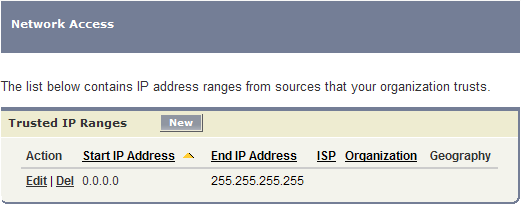
Current Trusted IP Functionality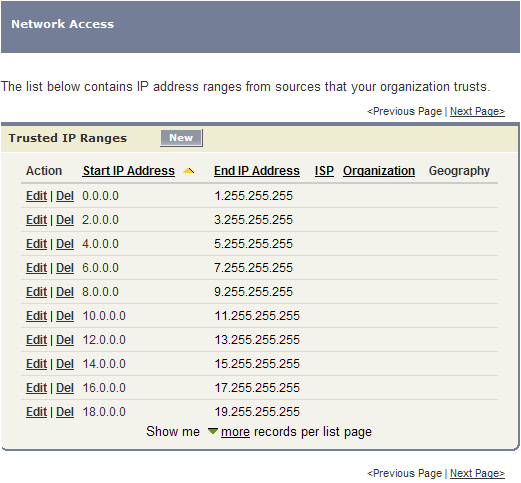
To be clear, most companies will not need to make trusted IP entries because they want to fully utilize the security features of the Salesforce application. But companies that sell AppExchange products will certainly need to add the full list of trusted IP ranges because they want to ensure that all people willing to demo their app can access it from wherever they might be on the planet. For this reason I decided to put together a simple sConrol that when accessed will populate the full range of possible IP addresses for an org. I use this sControl every time I create a developer edition org and when we create demonstration apps for our customers or for demos on the AppExchange. The full code is below:
<!DOCTYPE HTML PUBLIC "-//W3C//DTD HTML 4.01 Transitional//EN" "http://www.w3.org/TR/html4/loose.dtd">
<html>
<head>
<title>Update Network Access</title>
<!--
Created by: Greg Hacic
Last Update: 6 March 2009 by Greg Hacic
Questions?: greg@interactiveties.com
Copyright (c) 2009 Interactive Ties LLC
-->
<link href="/sCSS/15.0/Theme2/common.css" type="text/css" media="handheld,print,projection,screen,tty,tv" rel="stylesheet">
<link href="/sCSS/15.0/Theme2/allCustom.css" type="text/css" media="handheld,print,projection,screen,tty,tv" rel="stylesheet">
<link href="/sCSS/15.0/Theme2/dStandard.css" type="text/css" media="handheld,print,projection,screen,tty,tv" rel="stylesheet">
<script src="/js/functions.js" type="text/javascript"></script>
<script language="JavaScript" type="text/javascript">
var startingPoint = 0;
function initiatePage() {
var a = startingPoint;
var docHTML = "<table class=\"list\" border=\"0\" cellspacing=\"0\" cellpadding=\"0\">";
docHTML += "<tr class=\"headerRow\">";
docHTML += "<th scope=\"col\" class=\"\">IP Start</th>";
docHTML += "<th scope=\"col\" class=\"\">IP End</th>";
docHTML += "<th scope=\"col\" class=\"\">Status</th>";
docHTML += "<th scope=\"col\" class=\"\"> </th>";
docHTML += "</tr>";
while (a<=254) {
docHTML += "<tr class=\"dataRow ";
if (a%2 == 0) {
docHTML += "even";
} else {
docHTML += "odd";
}
if (a == 254) {
docHTML += " last\"";
} else if (a == 0) {
docHTML += " first\"";
} else {
docHTML += "\"";
}
docHTML += " onmouseout=\"if (typeof(hiOff) != 'undefined'){hiOff(this);}\" onfocus=\"if (typeof(hiOn) != 'undefined'){hiOn(this);}\" onblur=\"if (typeof(hiOff) != 'undefined'){hiOff(this);}\" onmouseover=\"if (typeof(hiOn) != 'undefined'){hiOn(this);}\">";
docHTML += "<td class=\"dataCell\">"+a+".0.0.0</td>";
docHTML += "<td class=\"dataCell\">"+(a+1)+".255.255.255</td>";
docHTML += "<td class=\"dataCell\" id=\""+a+"_Updated\">Updating...</td>";
docHTML += "<td class=\"dataCell\"><iframe id=\""+a+"\" name=\""+a+"\" src=\"/05G/e?retURL=%2F05G&IpStartAddress="+a+".0.0.0&IpEndAddress="+(a+1)+".255.255.255&save=1\" width=\"0\" height=\"0\" scrolling=\"Yes\" frameborder=\"0\"></iframe></td>";
docHTML += "</tr>";
a = a+2;
}
docHTML += "</table>";
docHTML += "<div class=\"pShowMore\">Click here validate the Org network access: <a href=\"/05G\" target=\"_parent\">View Network Access</a></div>";
document.getElementById("output").innerHTML = docHTML;
setTimeout("runReSaveFunction()",45000);
}
function runReSaveFunction() {
var a = startingPoint;
while (a<=254) {
var frame = document.getElementById(a);
var insideFrame = frame.contentWindow;
var confirmationKeyElement = insideFrame.document.getElementById("_CONFIRMATIONTOKEN")
if (confirmationKeyElement != null) {
var confirmationKey = confirmationKeyElement.value;
insideFrame.document.location.href = insideFrame.document.location.href+"&_CONFIRMATIONTOKEN="+confirmationKey;
var text = "<span style=\"color: #009900;\">Success</span>";
} else {
var text = "<span style=\"color: #FF0000;\">Failed!</span>";
}
document.getElementById(a+"_Updated").innerHTML = text;
a = a+2; //increment the counter
}
}
</script>
</head>
<body class="homeTab homepage" onload="initiatePage();">
<div class="bPageTitle"><div class="ptBody secondaryPalette"><div class="content"><img src="/s.gif" alt="Home" class="pageTitleIcon"><h1 class="pageType">IP Ranges<span class="titleSeparatingColon">:</span></h1><h2 class="pageDescription"> Open Up Security</h2><div class="blank"> </div></div></div></div>
<div class="filterOverview">This page uses a series of IFRAME tags to update the IP Range settings for the org. It may take a few minutes for all of the IP ranges to update correctly and you will know that the loading is complete when each row in the table below has a status set to "Success" or "Failed!". At the bottom of the screen there is a link to the network settings page. Click this link to validate that the updates from this sControl actually finished successfully.<br><div style="font-weight: bold;">Note: any rows that fail can either be entered manually or you can re-run this sControl to see if it catches them second time through...</div></div>
<div class="bRelatedList">
<div class="bPageBlock secondaryPalette"><div class="pbHeader"><table cellpadding="0" cellspacing="0" border="0"><tr><td class="pbTitle"><img src="/s.gif" alt="" title="" width="1" height="1" class="minWidth"><img src="/s.gif" alt="" class="relatedListIcon"><h3 class="bodyBold">Results Area</h3></td><td class="pbButton"> </td></tr></table></div>
<div class="pbBody" id="output"></div>
<div class="pbFooter secondaryPalette"><div class="bg"></div></div>
</div>
<div class="listElementBottomNav"></div>
</div>
</body>
</html>This code takes a minute or so to run completely but this is a short time period when compared to entry after entry that would need to be made in the trusted IP ranges table manually. Since the code only needs to be run once you can simply delete it after running the first time.
As always, you are welcome to send any questions directly to me using the email address listed at the bottom of this post or you can always contact my whole team by using the contact us page on this website.
Author

I've been working with Salesforce since 2003. Over the years, I've held various roles for a diverse array of salesforce.com customers, created a Salesforce specific ISV, and built numerous applications for the AppExchange. All of these experiences have allowed me to learn quite a bit about building on the platform.