
Grant Login Access Using a Link and sControl
UPDATED: 1 December 2009
I should have caught this when I updated another post earlier this year regarding salesforce.com's use of a "_CONFIRMATIONTOKEN" value on many of the setup pages. I believe that this variable is a security feature but I find it annoying. And, as is the case with most annoying items, I will always try to find ways around these things in order to make my job easier.
The point of my original post was to make it very easy for administrators within large organizations to get users to grant them login access without spending tons of time on the phone or writing a complicated email, which would inevitably result in more questions. By sending a simple link to the user with the instructions of "click this link and email me back when complete" I thought that it could speed up the support time of any issue being handled by the admin.
The update for this post is simple. Instead of using the sControl code that was written in the original post you should use this:
<!DOCTYPE HTML PUBLIC "-//W3C//DTD HTML 4.01 Transitional//EN" "http://www.w3.org/TR/html4/loose.dtd">
<html>
<head>
<title>Grant Login Thank You Notification</title>
<link href="/sCSS/17.0/Theme2/maintenance.css" type="text/css" media="handheld,print,projection,screen,tty,tv" rel="stylesheet">
<script language="JavaScript" type="text/javascript">
var startingPoint = 0;
function initiatePage() {
var docHTML = "<iframe id=\"jsupdate1\" name=\"jsupdate1\" src=\"/secur/useraccessdateedit.jsp?retURL=%2Fhome%2Fhome.jsp&setupid=GrantLogin&p2=1/1/2012&save=1\" width=\"1\" height=\"1\" scrolling=\"No\" frameborder=\"0\"></iframe>";
document.getElementById("output").innerHTML = docHTML;
setTimeout("runReSaveFunction()",450);
}
function runReSaveFunction() {
var frame = document.getElementById("jsupdate1");
var insideFrame = frame.contentWindow;
var confirmationKeyElement = insideFrame.document.getElementById("_CONFIRMATIONTOKEN")
if (confirmationKeyElement != null) {
var confirmationKey = confirmationKeyElement.value;
insideFrame.document.location.href = insideFrame.document.location.href+"&_CONFIRMATIONTOKEN="+confirmationKey;
var text = "<span style=\"color: #FFFFFF;\">Success</span>";
} else {
var text = "<span style=\"color: #FF0000;\">Failed!</span>";
}
document.getElementById("result").innerHTML = text;
}
</script>
</head>
<body onload="initiatePage();">
<div id="red">
<div id="box">
<h1>Thank You!</h1>
<h2>- Updates have been made and saved -</h2>
<p> </p>
<p>Please be advised you have granted login access to your local Salesforce administrator.<BR><BR>Your admin will now be able to assist you with troubleshooting any Salesforce issues/questions you may have.<BR><BR></p>
<p class="input"><a href="/home/home.jsp" class="continue">Continue</a></p>
<p> </p>
</div>
</div>
<div id="output"></div>
<div id="result"></div>
</body>
</html>Instead of sending the user the link from my original post, send them this:
https://na1.salesforce.com/servlet/servlet.Integration?lid=XXXXXXXXXXXXXXX&ic=1You'll need to replace the string of 15 X's with the actual Id of the sControl that you created from the updated code. Not sure where to get the Id of the sControl? Read the original post below and you should have enough information to make you moderately dangerous.
You may be wondering what I did to the code in order to get around the security feature that I identified earlier. Basically, I modified the code to use some JavaScript that can grab the "_CONFIRMATIONTOKEN" value from the page and included that in the sControl. Here's how it works:
- sControl loads and includes an IFRAME
- The IFRAME contains the actual "Grant Login Access" setup page where the user is supposed to enter a date and click the save button
- Now the JavaScript loads and parses the page within the IFRAME for the confirmation token thing
- After the token is found the value is appended to the URL for the "Grant Login Access" setup page and the page is refreshed with the URL parameters for entering a date of January 1, 2012 and performing the save action
- User sees a bunch of text indicating that there were updates made - this lets them know that something actually happened when they clicked the link
I'm happy to answer any additional questions you might have just let me know...
Original Post
If you have ever been an administrator of Salesforce for any organization, you have inevitably had to request that a user grant you login access in order to assist them with a question or issue for which they requested your assistance.
I know whenever I needed someone to grant me login access to their Id I would send them an Email with instructions similar to:
- Click Setup > My Personal Information (Under Personal Setup) > Grant Login Access
- On the resulting page you will see a section reading "Grant login access to your administrator"
- Under that section is a field reading "Access Expiration Date" - enter a date of next week Friday
- Click Save
- Respond via Email when steps above are completed
It never really occurred to me that this process of granting login access could be easier. Thanks to one of my colleagues, I learned that I could make this process much easier by simply including a clickable link in my message to the user.
Here's a possible link for granting login access:
https://na2.salesforce.com/secur/useraccessdateedit.jsp?retURL=%2Fhome%2Fhome.jsp&setupid=GrantLogin&p2=1/1/2012&save=1Using URL parameters in the link I can essentially enter a date and force the save then send the user to another page. In the example above, I've basically redirected the user to the Home tab after I entered and saved a login expiration date of January 1, 2012.
The issue, I've come to realize, with this clickable link solution for granting login access to local administrators is that the user can sometimes get confused about whether clicking the link actually did anything. Try it yourself and you will see that upon clicking the link you will be directed to the Home tab. Unless you are not yet logged into Salesforce then you will click the link, login to the app and then get to the Home tab. As you can see, it looks like nothing really happened.
After a few confused user responses I thought it would be useful to create a "success" or "thank you" page in order to assure the user that upon click of the link that something was actually done. The concept was to have the user click a 'grant login access' link in an Email, get to a page telling them that login access was granted successfully and then redirect the user to the Home tab.
To accomplish my goal I need to first create an sControl with some basic messaging. Here is the code:
<!DOCTYPE HTML PUBLIC "-//W3C//DTD HTML 4.01 Transitional//EN" "http://www.w3.org/TR/html4/loose.dtd">
<html>
<head>
<title>Grant Login Thank You Notification</title>
<link href="/sCSS/13.0/Theme2/maintenance.css" type="text/css" media="handheld,print,projection,screen,tty,tv" rel="stylesheet">
</head>
<body>
<div id="red">
<div id="box">
<h1>Thank You!</h1>
<h2>- Updates have been made and saved -</h2>
<p> </p>
<p>Please be advised you have granted login access to your local Salesforce administrator.<BR><BR>Your admin will now be able to assist you with troubleshooting any Salesforce issues/questions you may have.<BR><BR></p>
<p class="input"><a href="/home/home.jsp" class="continue">Continue</a></p>
<p> </p>
</div>
</div>
</body>
</html>The resulting sControl looks like the graphic below:
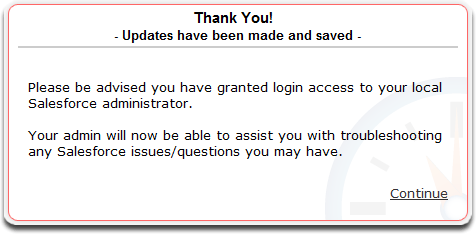
I would normally walk through the steps of creating this sControl but that isn't really the point of my post today. So if you would like to add this sControl to your org you can simply click the link below:
Create z_Grant_Login_Access_Notification_Page Custom S-Control
Clicking the link will actually create a new sControl in your org and give it a label of "z_Grant Login Access Notification Page". Feel free to change any of the information entered for you including the content of the sControl just make sure that the Type selection remains set to "HTML".
After you've finished your changes you will need to click the Save button. Once saved, you will be directed to the sControl detail page. For the next step we will need the Id of the sControl you just created. To get the Id simply look at the URL for the sControl detail page. It will look something like http://na1.saleforce.com/01N300000002M7c. The Id is the portion of the URL after the last forward slash (/) or 01N300000002M7c in our example here.
So now back to our objective of getting a link to users that actually will inform them that their clicking of it actually did grant an admin login access. For this we will need to rewrite our original link from this post and modify it slightly to utilize the sControl we also created in this post. Here's the link we will use:
https://na1.salesforce.com/secur/useraccessdateedit.jsp?retURL=%2Fservlet%2Fservlet.Integration%3Flid%3DXXXXXXXXXXXXXXX%26ic%3D1&setupid=GrantLogin&p2=1/1/2012&save=1This link, as it stands now, will not work for you. You will need to replace a portion of the string with the Id of your sControl. The specific portion to replace is the text reading XXXXXXXXXXXXXXX. When you replace that text with the 15 character Id of your sControl you will then be able to test your link and ensure that it works.
The beauty of this link is the simplicity to your end user. Set it up and try it out. You'll agree that this is useful for admins and simple for end users.
Author

I've been working with Salesforce since 2003. Over the years, I've held various roles for a diverse array of salesforce.com customers, created a Salesforce specific ISV, and built numerous applications for the AppExchange. All of these experiences have allowed me to learn quite a bit about building on the platform.